How to Onboard Your First AI Automation Client, Stage by Stage
The real sequence for taking a client from zero to a live agent — add the client, wire up their integrations, request the agent, and verify it actually ran — stage by stage, with the US texting wait called out.
By AgentLane Founder · Founder
Onboarding a client end to end — from an empty dashboard to a live agent answering a real enquiry — is four stages: add the client, fill in their business details and integrations, request an agent, then verify it actually ran. None of the four stages is slow. What stretches onboarding is waiting outside AgentLane: on the client to hand over a Twilio number or a Cal.com link and, for a US number that will text, on carrier (A2P 10DLC) registration, which usually takes one to three weeks. Start that on day one; agents that only send email, like the Lead Qualifier, do not wait on it.
This is a walkthrough of that sequence, stage by stage, with rough estimates of the dashboard time, matched against the actual screens you'll be looking at. If you want the exhaustive reference version with every field explained, it lives at Add a client and Deploy your first agent — this post is the compressed version of the same four stages.
Stage 1 — Create the client record (2 minutes)
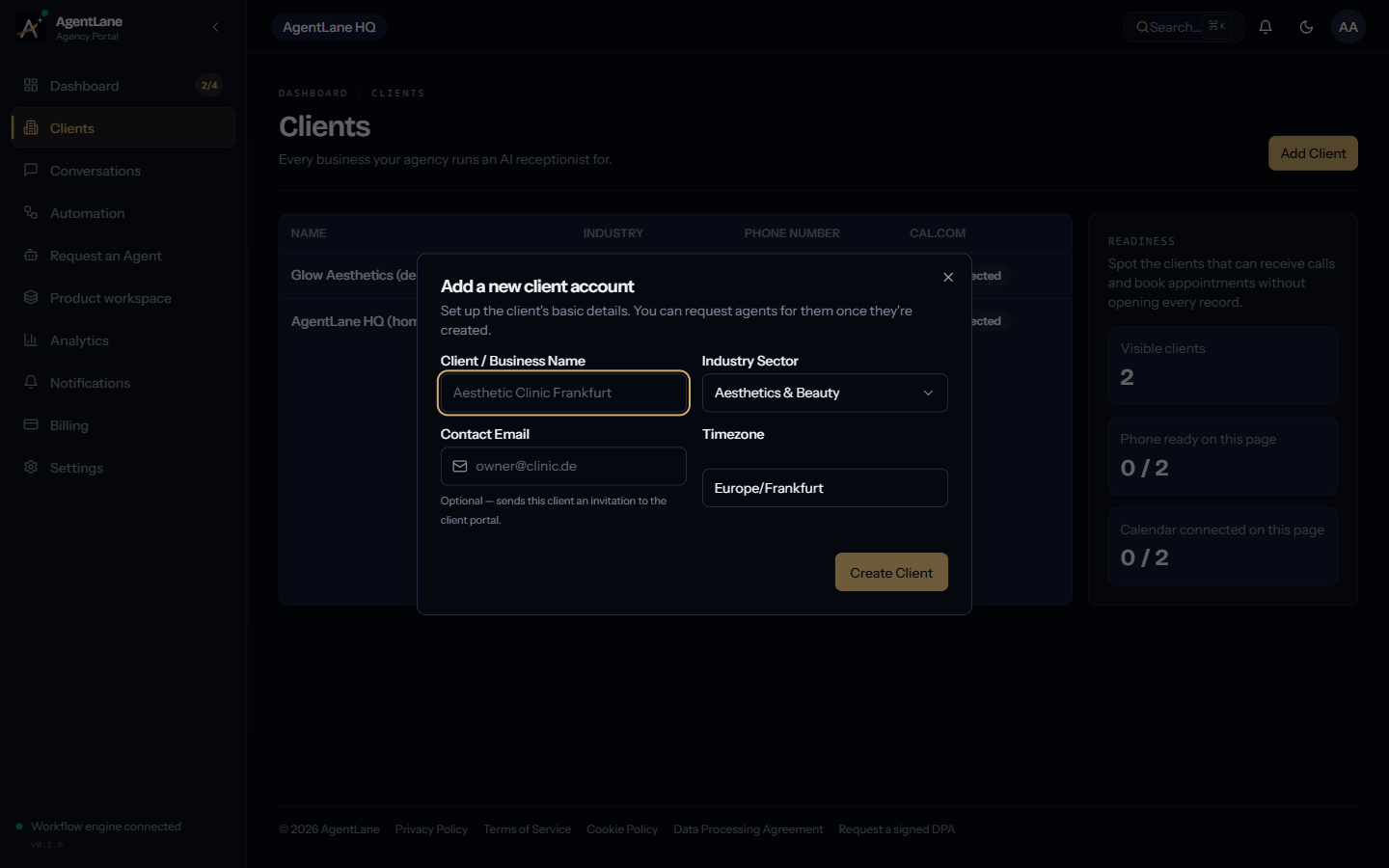
From Clients (/dashboard/clients), click Add Client. You need exactly four things:
- Client / Business Name
- Industry Sector — a dropdown, "Featured industries" grouped above "More industries"
- Timezone — free text, defaults to
Europe/Frankfurtif you leave it - Contact Email (optional) — set it and AgentLane sends that address a client-portal invitation immediately
That's the whole record. Nothing here blocks on an integration being ready — you can create the client the moment you've won the pitch, before Twilio or Cal.com access has even changed hands.
Stage 2 — Business hours, services, and integration links (10–15 minutes, mostly waiting on the client)
Open the client's detail page. Three things happen here, and they're the ones worth getting right the first time because the AI reads them directly, not as fallback copy:
Business hours. Each day gets a text field in HH:MM-HH:MM format — 09:00-17:00, say. Leave a day blank and it's treated as closed. This feeds the after-hours greeting logic directly, so a wrong entry here means the agent tells a caller the wrong thing about whether anyone's in.
Services and prices. Add each service with a name and a price — free text, so "Boiler service" / "$120" works fine. This is what the agent quotes when a caller asks "how much for X."
Contact & integration links — four fields, and this is usually where the clock actually stops:
| Field | Example | What blocks without it |
|---|---|---|
| Twilio phone number | +441234567890 |
Nothing rings the agent |
| Cal.com booking link | https://cal.com/your-clinic |
Nothing gets booked onto the client's own calendar |
| Owner WhatsApp | +447700999888 |
No direct owner notification channel |
| Google review link | https://g.page/.../review |
Review-response agent has nowhere to point a happy customer |
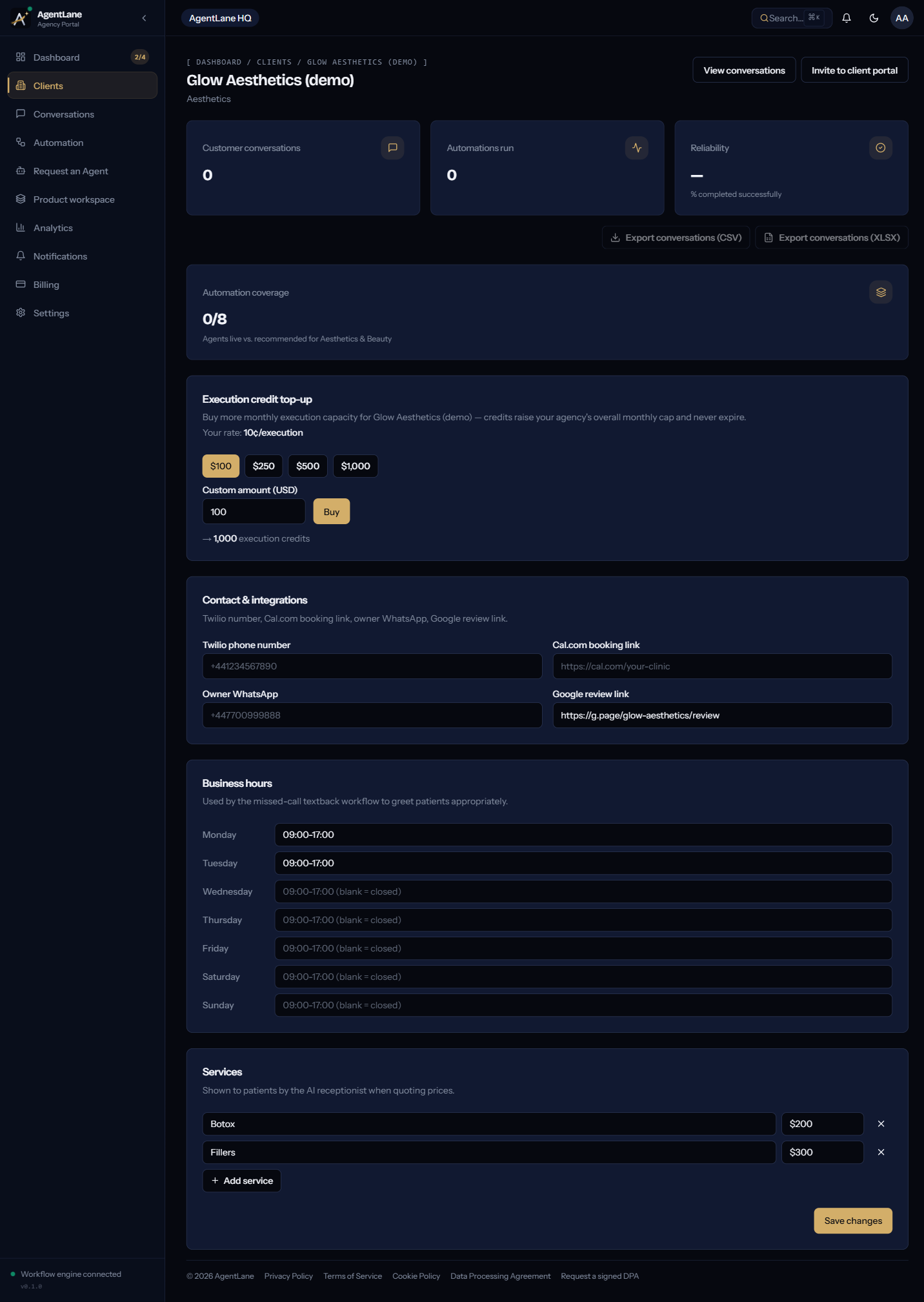
Click Save changes at the bottom of the Services card — it persists business hours, services, and all four contact fields together in one call.
The honest time estimate here isn't the ten minutes of typing. It's however long it takes the client to actually send you a working Twilio number and a real Cal.com link — which is why the fastest agencies ask for both in the same first call where they get the sale, not in a follow-up email three days later.
Stage 3 — Request the agent (5 minutes)
Before requesting anything, confirm your agency has default credentials set at Settings → Integrations (/dashboard/settings/integrations) — see Connect your integrations if you haven't done this once already. Once agency defaults exist, every subsequent client benefits from them automatically through the credential waterfall: a client's own credential wins if they've set one, otherwise your agency default is used. That covers Twilio, Cal.com and Resend, with no platform fallback. AI is not part of it: every agent runs on AgentLane's own managed Gemini models on Vertex AI, and there is no AI key to set.
Go to Request an Agent (/dashboard/agents), select the client, and pick an agent. If the client's industry matches the agent's fit list, you'll see a "Recommended for [client name]" badge. Any missing credential fields show up inline, right there, so you can fill them in without leaving the dialog.
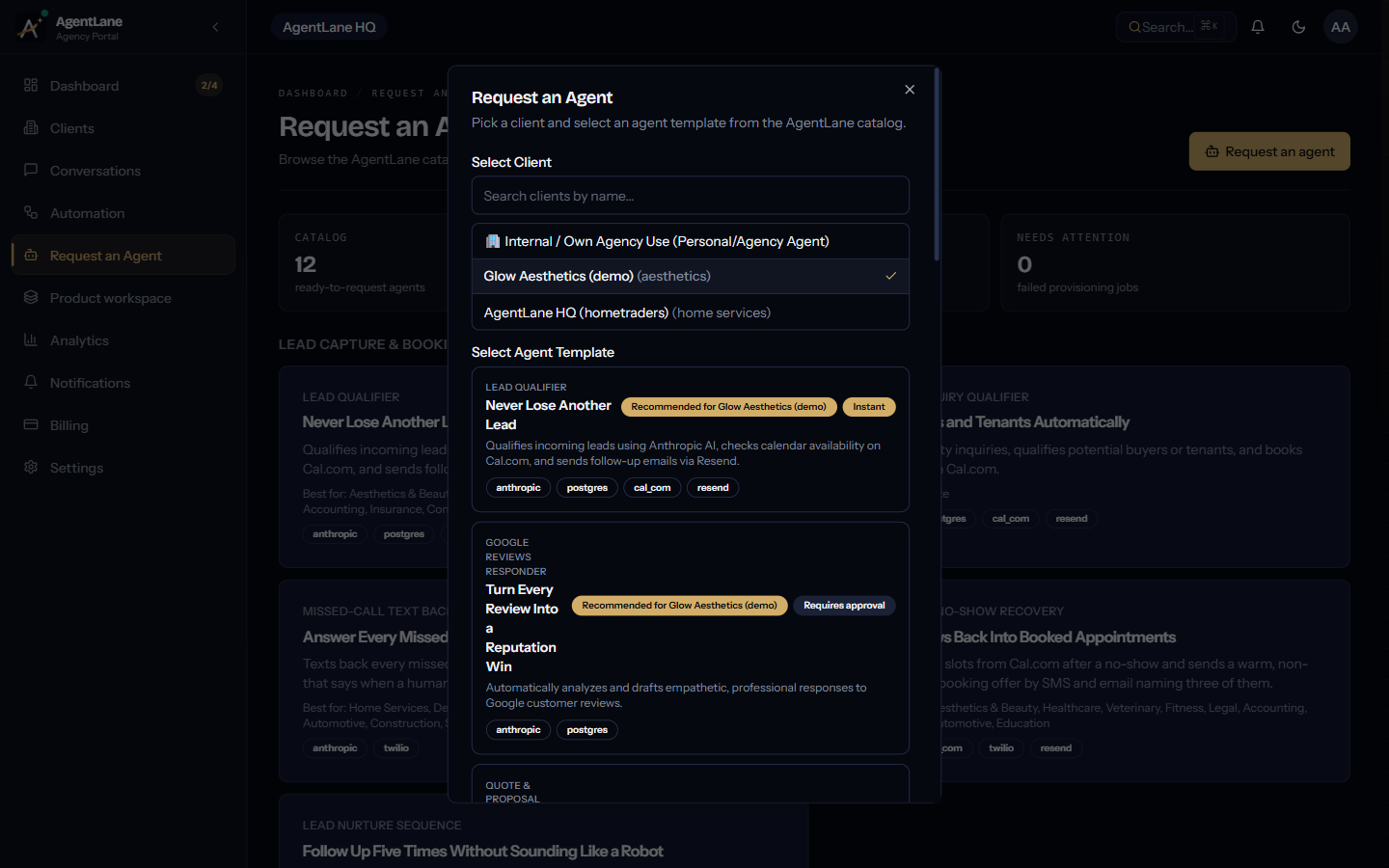
Step two shows the estimated cost — $59–$99/month depending on your plan tier, the same rate for all twelve catalog agents — and a Required Credentials checklist marked Configured or Missing. Submit, and the request queues for AgentLane staff review. The exceptions are the Lead Qualifier, Missed-Call Text Back and the Weekly Performance Brief: they carry an instantProvisioning: true flag and the deployment-level switch that honours it is on, so they provision without waiting for review.
Stage 4 — Verify it's really live (5 minutes, the stage most people skip)
Once the request shows fulfilled, go to Workflows (/dashboard/workflows) and confirm the instance is Active and Tracked. Then send a real test — call or text the client's Twilio number — and open Executions (/dashboard/executions) to watch the run land in the real-time feed with a status and an expandable output payload. On a US number, the reply text only arrives once A2P 10DLC registration has cleared.
This step is the difference between "I set it up" and "I confirmed it works." A workflow can show Active in the dashboard while nothing actually triggers it — almost always because the client's Twilio number isn't yet pointed at AgentLane's webhook on the Twilio side, a configuration step outside the Portal. Catching that here, in your own test call, means you catch it before the client does. See Monitor & debug for the full loop once the agent's been live a few days.
What eats the time
The dashboard work in the four stages above is the short part. The gap between that and "onboarding took a week" is almost never AgentLane's side — it's waiting on the client's Twilio SID, their Cal.com login, or a decision about which phone number to point at the agent. On a US number that will text, add carrier (A2P 10DLC) registration: it usually takes one to three weeks and is the one wait you cannot compress, so start it in the conversation where you close the client. The highest-leverage thing you can do about the rest is collect Twilio and Cal.com access in that same conversation, not as a follow-up task on their to-do list.
Where to start
If you haven't onboarded a client yet, walk through Deploy your first agent once with a real pilot client rather than a test account — it uses the Lead Qualifier as a full worked example, screen by screen. If you're deciding what to lead with for a client that's already lost bookings to missed calls, the missed-call text-back breakdown is the companion piece on why speed matters before you even get to setup.
Book a free consultation if you want a second pair of eyes on your first client's setup before you go live.
Every field and screen in this post is the actual sequence in the product today, not a simplified version of it; the stage times are rough estimates of the dashboard work, not measurements. If a screen looks different when you get there, the docs pages linked above are the ones that get updated first.
Frequently asked questions
- Do I need the client's Twilio and Cal.com accounts set up before I start?
- Not before you start — the client record itself takes under two minutes with just a name, industry, and timezone. But you do need them before the agent can go live, so the honest move is asking for Twilio and Cal.com access in the same first call, not after.
- What's the actual bottleneck in onboarding?
- Two waits outside the dashboard. The client has to hand over a working Twilio number and a real Cal.com booking link, and on a US number, texting starts only once carrier (A2P 10DLC) registration clears, which usually takes one to three weeks. Start both on day one. The dashboard steps themselves — creating the client, requesting the agent, watching it provision — are the short part.
- Can I onboard a client without their own Cal.com or Twilio account?
- Only if your agency's own default credentials cover it — the credential waterfall falls back to your agency-wide Twilio/Cal.com/Resend keys when a client hasn't set their own. That works for a shared pilot, but a client who wants their own phone number and calendar needs their own accounts eventually.
- What happens if I get the business hours or services wrong at setup?
- Nothing breaks — they're editable any time from the client detail page. But the agent reads directly from those fields when it texts a caller back or answers a question about services, so an error there shows up in a live conversation, not a warning message.