Invite a Client to the Portal
Giving a client their own login lets them see their conversations and manage their own overrides without ever touching your dashboard.
Send the invitation
From the client’s detail page (/dashboard/clients/[id]), click Invite to client portal. Fill in their name and email, and send it — AgentLane emails them a link to set up a scoped login. The invite expires in 7 days, and you can resend or revoke it before it’s accepted from Settings → Team → Invitations on your own side.
The client accepts
They open the emailed /invite/[token] link, set a password, and land signed in at /client — the Client home page.
If your agency hasn’t finished provisioning their agent yet, they see a plain reassurance message (“[Your agency] is configuring your agent. Conversations will appear here as soon as it goes live.”) instead of a dashboard full of zeros. Either way, a short “Getting started” checklist walks them through meeting their agent, setting notification preferences, and — only on a BYOK plan — adding their own AI provider key. There’s no modal that interrupts them on login; a “Take a 60-second tour” link in the checklist is there if they want a guided walkthrough, but nothing opens it for them.
What they see
-
Home (
/client) — once their agent is live, the same usage snapshot and Outcomes panel you see on their client page: counts of missed calls texted back, bookings made by agents and callbacks requested, and the median time to the first SMS reply, for the last 7, 30 or 90 days. The Estimated value line appears only if you set an average job value for them, and it is labelled as an estimate. -
Conversations (
/client/conversations) — every SMS conversation their agent has started for them (today: the missed-call text-back), with the message sent, any reply the caller texted back, and the workflow runs behind it. There is no website chatbot to embed on their site, and voice calls are listed separately under Calls without a transcript.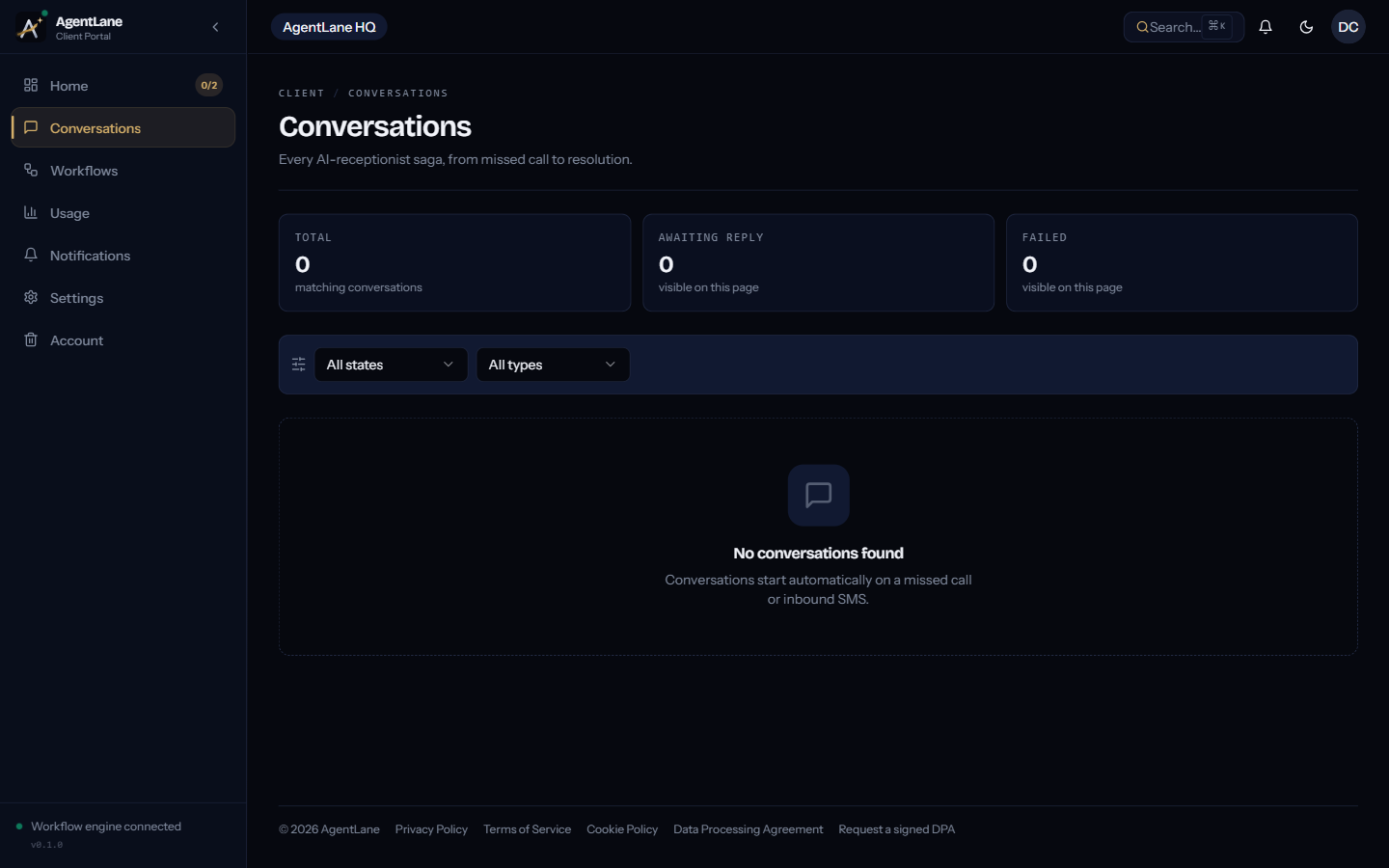
-
Settings → Credentials (
/client/settings/credentials) — where they can override your agency’s default credentials with their own (Anthropic/OpenAI, Cal.com, Resend, Postgres). Anything they don’t set falls back to your agency default.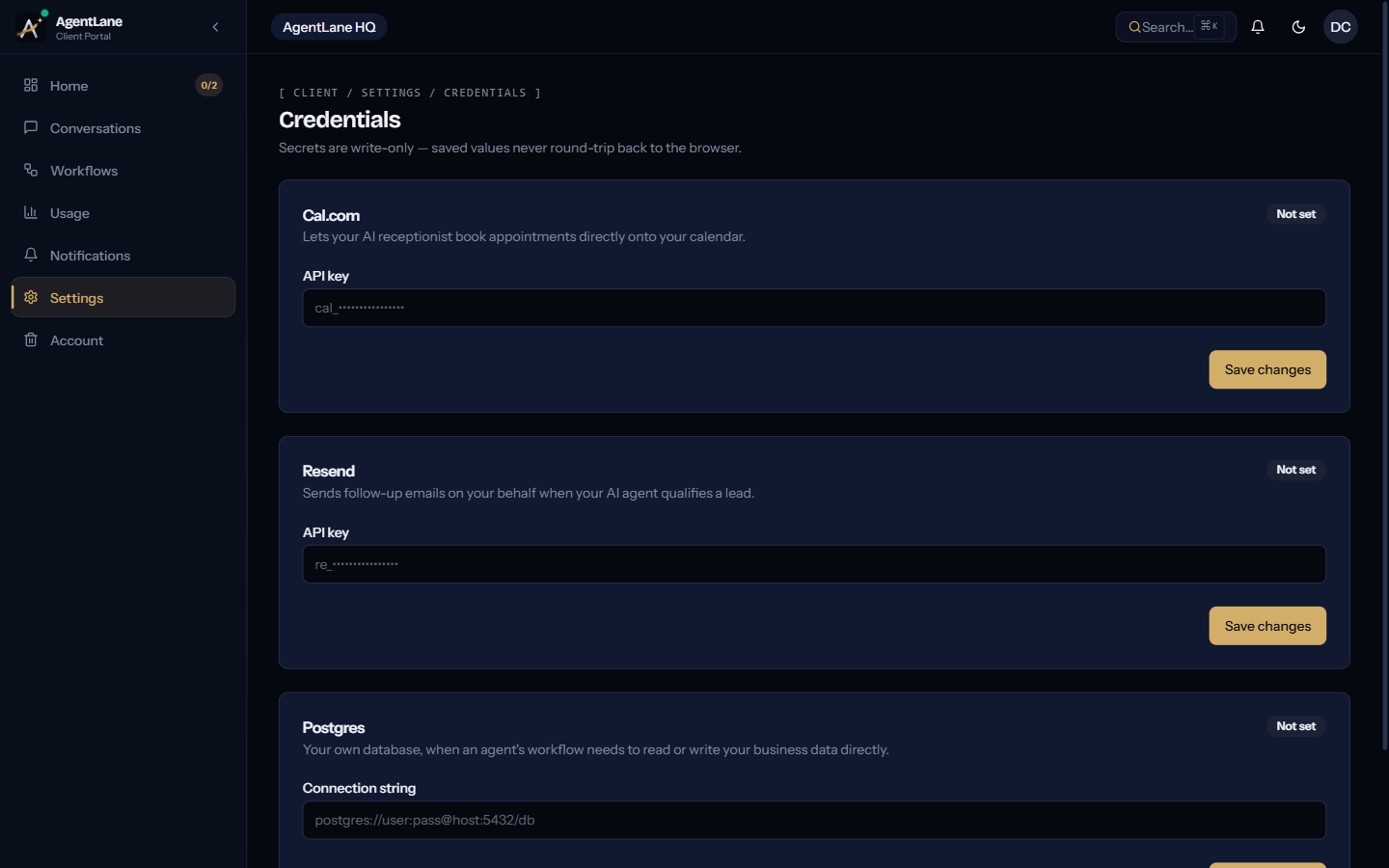
-
Usage (
/client/usage) — their execution credits, limit, and usage. -
Workflows (
/client/workflows) — a read-only list of the agents you’ve activated for them. -
Notifications and Settings → Account (
/client/settings/account) — email frequency preferences, and where they’d start an account deletion request if needed.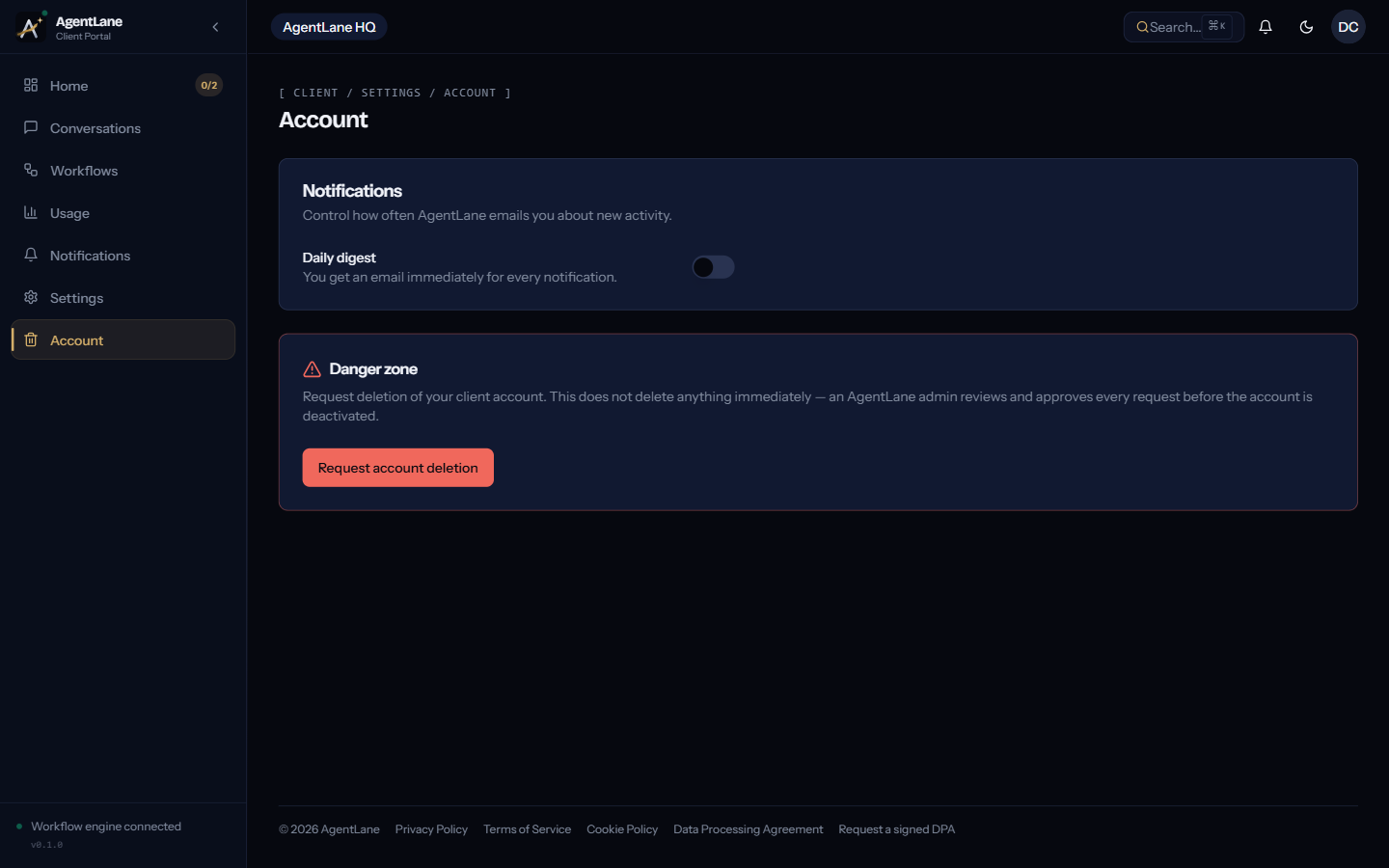
What they can’t do
Nothing in the Client view edits a workflow directly, and clients never see workflow logic, executions, or other clients’ data — the fields they maintain here (and the ones you maintain on their client-detail page) feed straight into the AI agent’s prompt. Update their hours or price list, and the AI’s next conversation reflects it automatically, with no code changes on either side.
For the full route reference, see Client Portal.