Manage Your Team
Invite a team member
From Settings → Team (/dashboard/settings/team), invite by email with a permission of moderator (view-only) or admin (full edit). New team members are invited as moderator by default. The invite link expires in 7 days; you can resend or revoke it any time before it’s accepted.
Promote or manage existing members
Team members can be promoted from moderator to admin (or the reverse) from the same page — a member can’t change their own permission.
Add seats
If you’ve hit your seat limit, ask for more from the Request your plan thread (/dashboard/custom-plan) — self-serve seat purchase is not enabled yet. See Billing & Credits.
Enable MFA for your own account
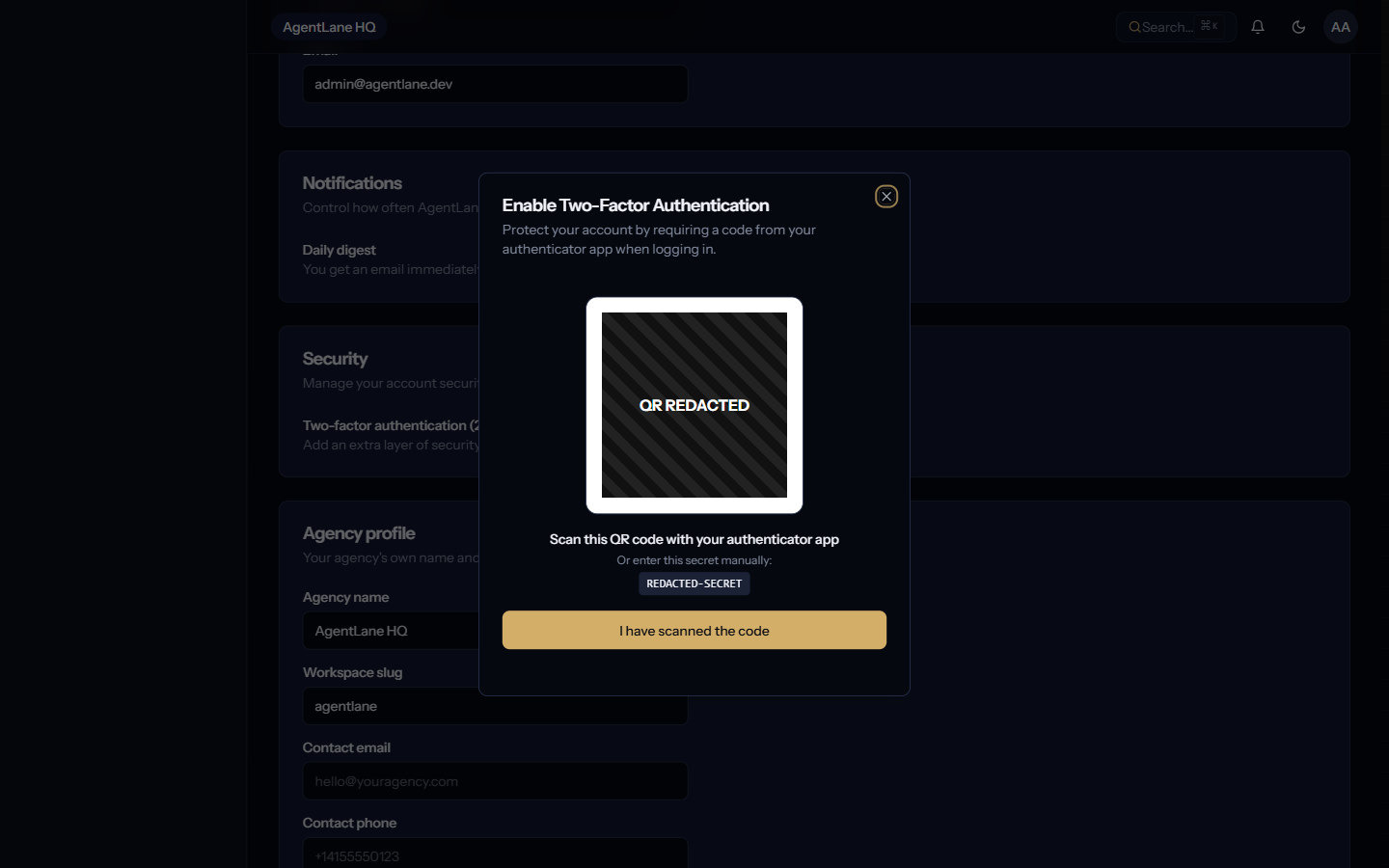
From Settings → Security (part of /dashboard/settings), click Enable, scan the QR code (or enter the secret manually) in an authenticator app, then confirm with the current 6-digit code.
Configure SSO (plan-gated)
From Settings → SSO (/dashboard/settings/sso), connect your OIDC or SAML identity provider (Okta, Azure AD, Google Workspace, self-hosted Keycloak). Once the connection is verified, a separate Enforcement toggle lets you require SSO for your whole team, blocking password login entirely.
admin vs moderator is enforced independently on almost every dashboard page (agents, billing, integrations, team, webhooks, SSO, chatbot settings) — a moderator gets full read visibility into your agency’s operations but every mutating action (buy, save, invite, delete, toggle) is hidden or disabled for them. See Team permissions within a Partner.
Agency-wide MFA enforcement (requiring every team member to have it enabled) isn’t available yet — only the per-user toggle above.